
Set up your workspace
The first time you sign in as an admin, the dashboard shows an onboarding checklist with five items — complete the setup survey, configure company settings, configure offices, invite your team, and create your first job. You can do these in any order, and you can come back to each one later from Settings → Preferences.
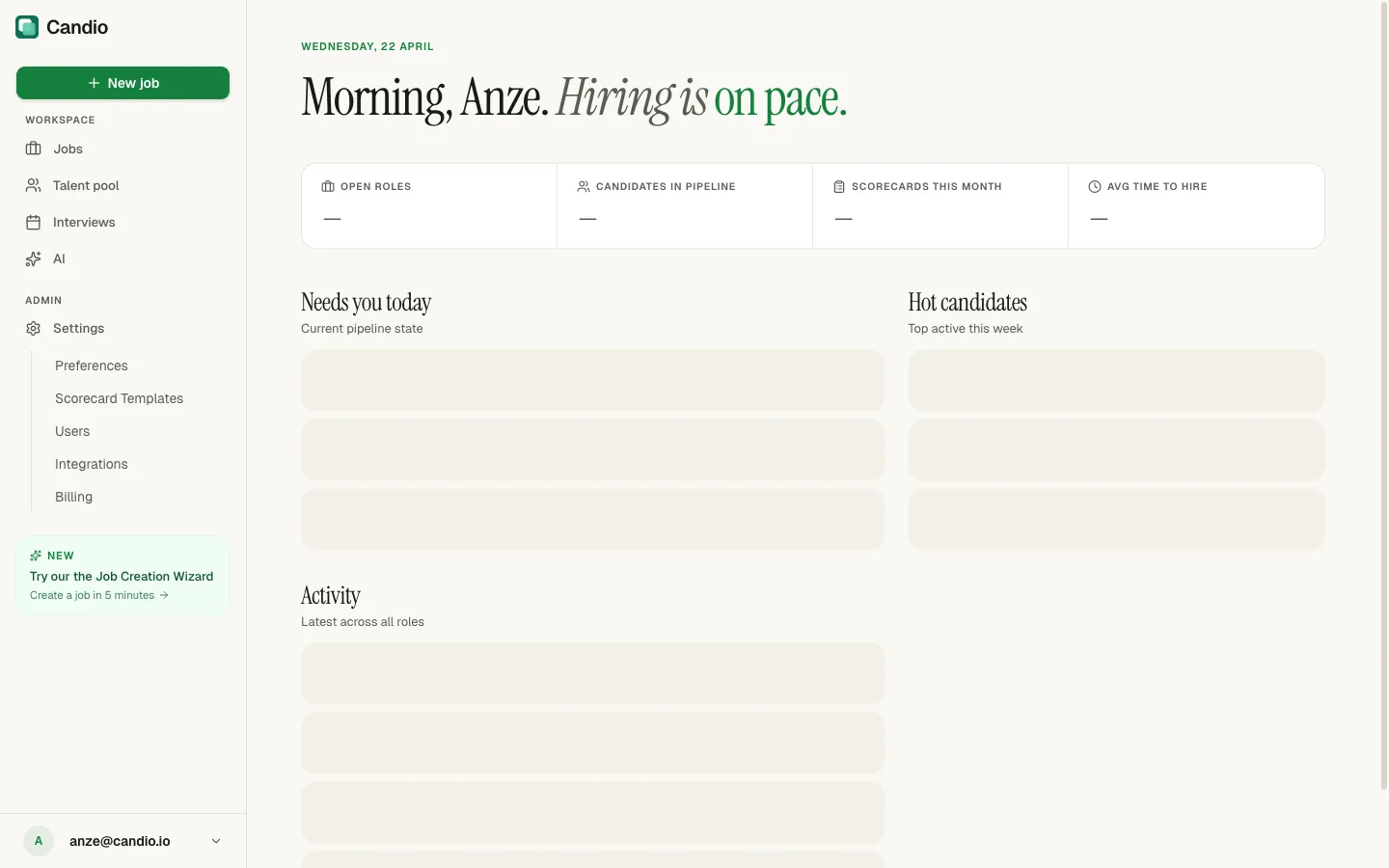
Click Resume setup on any checklist item to jump to where it lives. The checklist hides itself once all five items are done.
Company information
Section titled “Company information”Go to Settings → Preferences.
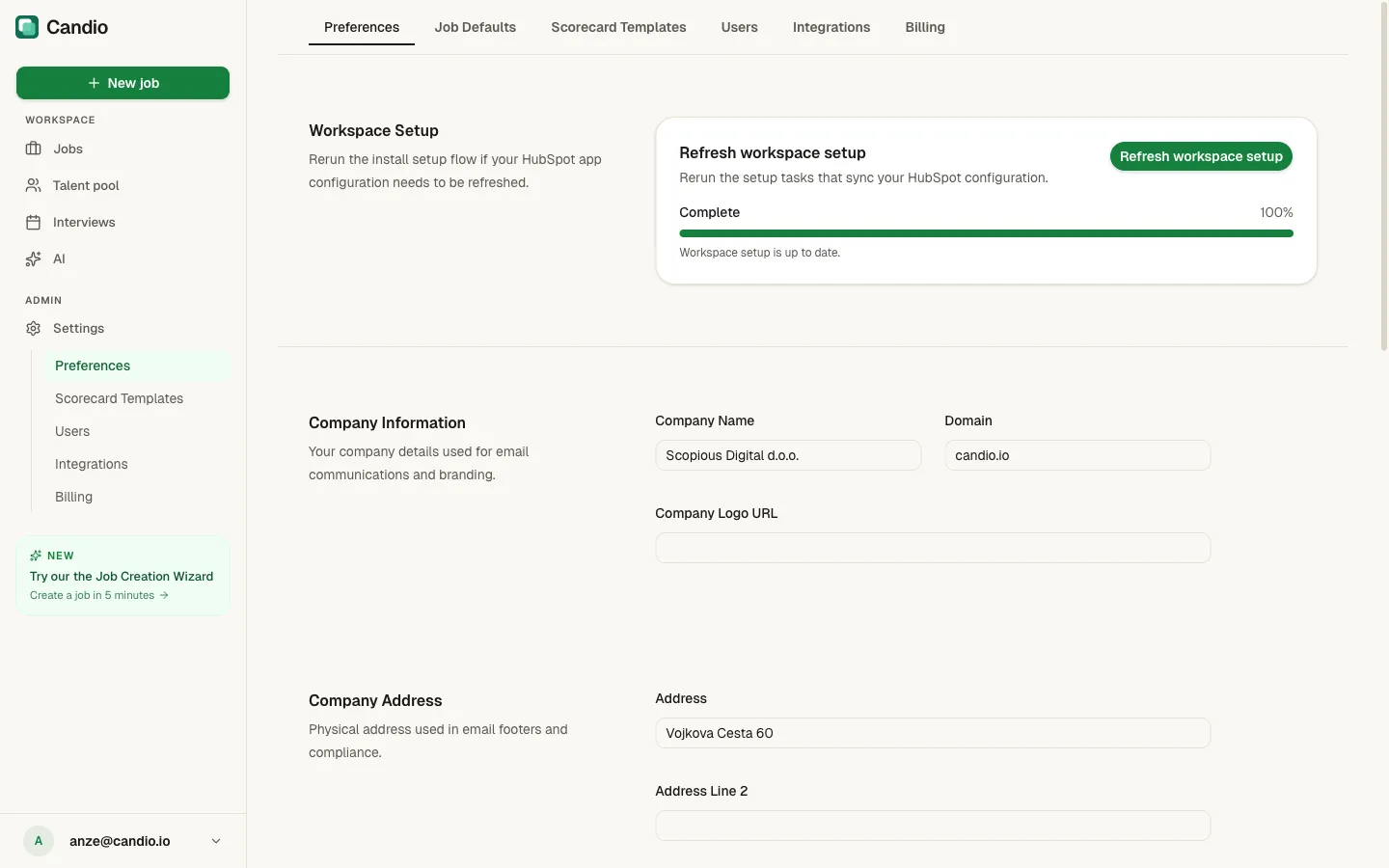
Fill in:
- Company Name — used on candidate emails and the careers page.
- Domain — your company's public web domain (e.g.
candio.io). - Company Logo URL — a public URL that resolves to your logo image. Used on candidate emails and the careers page header.
- Company Address — full mailing address. Appears in the email footer of every candidate-facing email, which is required by CAN-SPAM and similar regulations.
Click Save company information at the bottom when you're done. The button stays disabled until you've changed something.
Offices
Section titled “Offices”Offices are the physical locations where you hire. Each office shows up in the location picker on Step 1 of the job wizard and in your public careers page filters.
Add an office under Preferences → Offices:
- Name — e.g. Headquarters or NYC.
- City (required).
- State / Region (required).
- Country (required) — from the dropdown.
- Postal Code — optional but strongly recommended; required for Google for Jobs structured-data eligibility.
- Street Address — optional.
Click Add Office. A warning badge (⚠ Location details needed for job board distribution) shows on any office that's missing the fields required for job-board distribution.
Removing an office doesn't break jobs already assigned to it — those jobs keep their previous value.
Departments
Section titled “Departments”Departments are the teams your jobs belong to. They appear in the team dropdown on Step 1 of the wizard and as filters on the public careers page.
Candio seeds every workspace with eight defaults:
- Engineering
- Sales
- Marketing
- Operations
- Finance
- HR
- Customer Success
- Product
Under Preferences → Departments, type a new name in Department name and click the + button. Click the trash icon next to any department to remove it. (Removing doesn't affect jobs already assigned to it.)
Careers page
Section titled “Careers page”At the bottom of Preferences, toggle Enable careers page to make your public careers page live. When on, candidates can browse and apply for your open jobs at your Candio-hosted careers URL.
Workspace setup refresh
Section titled “Workspace setup refresh”The top of the Preferences page shows a Workspace Setup card with a progress meter:
- 100% → Workspace setup is up to date.
- < 100% → some HubSpot install tasks (object creation, field sync, pipeline stages) haven't finished or need to re-run.
Click Refresh workspace setup if you need to re-trigger those tasks — for example, after a HubSpot permission scope change.
What each setting is used for
Section titled “What each setting is used for”| Setting | Where it shows up |
|---|---|
| Company name, logo, domain | Email header/footer on every candidate email, public careers page. |
| Company address | Email footer (CAN-SPAM compliance). |
| Offices | Location picker in wizard; careers page filter; Google for Jobs structured data. |
| Departments | Team picker in wizard; careers page filter. |
| Careers page toggle | Gates whether /careers/* is publicly reachable. |