
Sign in
Candio has no passwords. You sign in with a magic link emailed to you, or with Google or Microsoft single sign-on. Whichever path you choose, you land directly in your workspace.
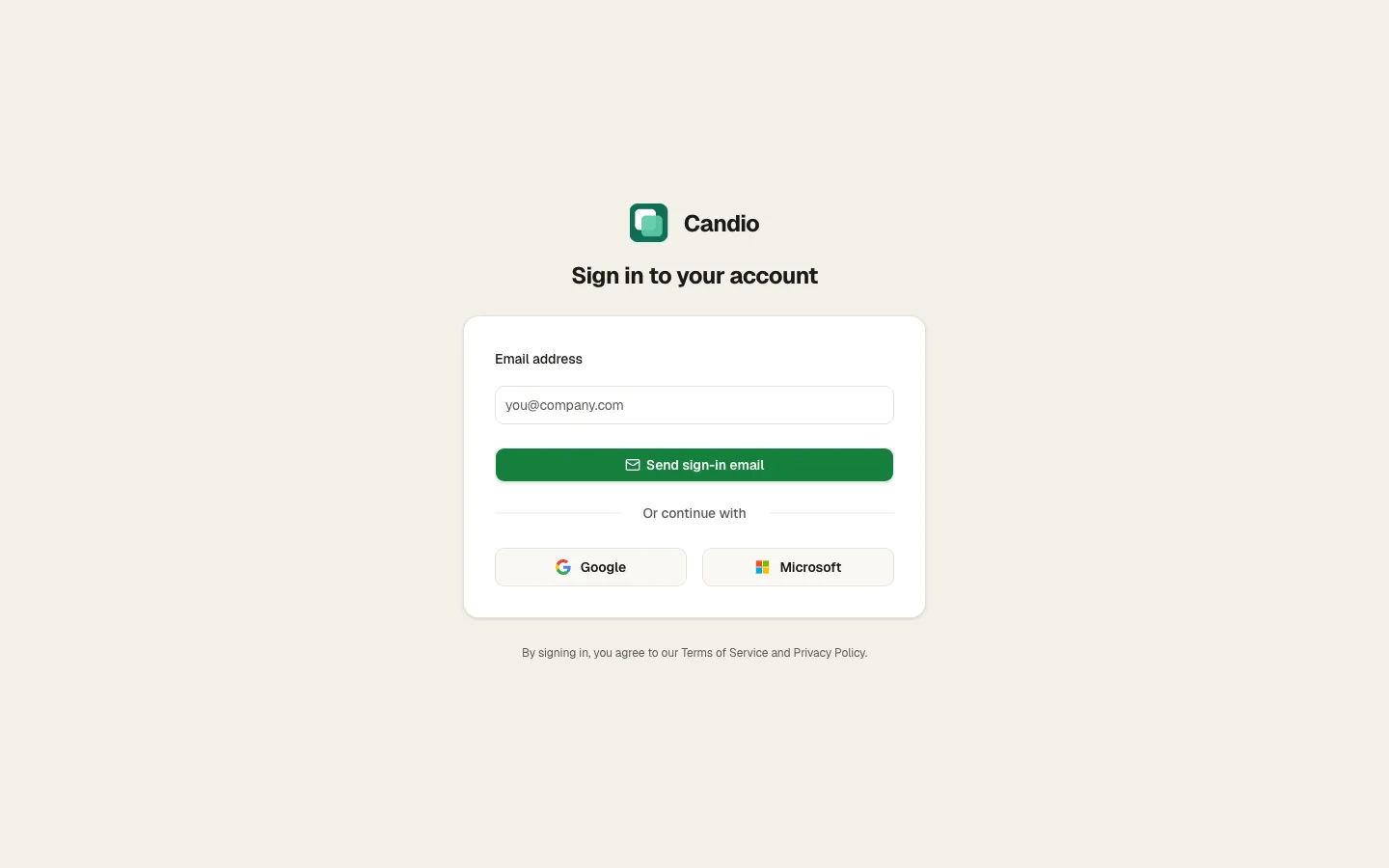
Three ways to sign in
Section titled “Three ways to sign in”Magic link (default)
Section titled “Magic link (default)”- Type your work email in the Email address field.
- Click Send sign-in email.
- Check your inbox for a message from Candio and click the one-tap link. You're signed in.
Magic links are one-use and expire after a short window. If the link doesn't work, request a new one from the same screen.
Continue with Google
Section titled “Continue with Google”Click Google, complete Google's consent screen, and Candio matches the email on your Google account to your workspace user. Best option if your company runs on Google Workspace.
Continue with Microsoft
Section titled “Continue with Microsoft”Click Microsoft, complete Microsoft Entra's consent flow, and Candio matches the email on your Microsoft account. Best option if your company runs on Microsoft 365.
Choose a workspace
Section titled “Choose a workspace”If your email is a member of more than one Candio workspace, after sign-in Candio shows a Choose account screen. Tap the workspace you want to enter. The choice is sticky — your next sign-in skips this screen until you sign out.
If you see "Access denied"
Section titled “If you see "Access denied"”Your email isn't a member of the workspace you're trying to enter. Ask an admin to add you under Settings → Users (see Team & roles). They'll enter your exact work email — it has to match the one you sign in with.
Session length
Section titled “Session length”Signing in keeps you logged in for 30 days on that browser. Closing the tab, restarting your machine, or switching devices doesn't sign you out. To sign out manually, click your avatar at the bottom-left of the sidebar and choose Sign out.