
Billing & plans
Settings → Billing shows your current plan, active-job and AI-credit usage for the current cycle, and lets you change plans.
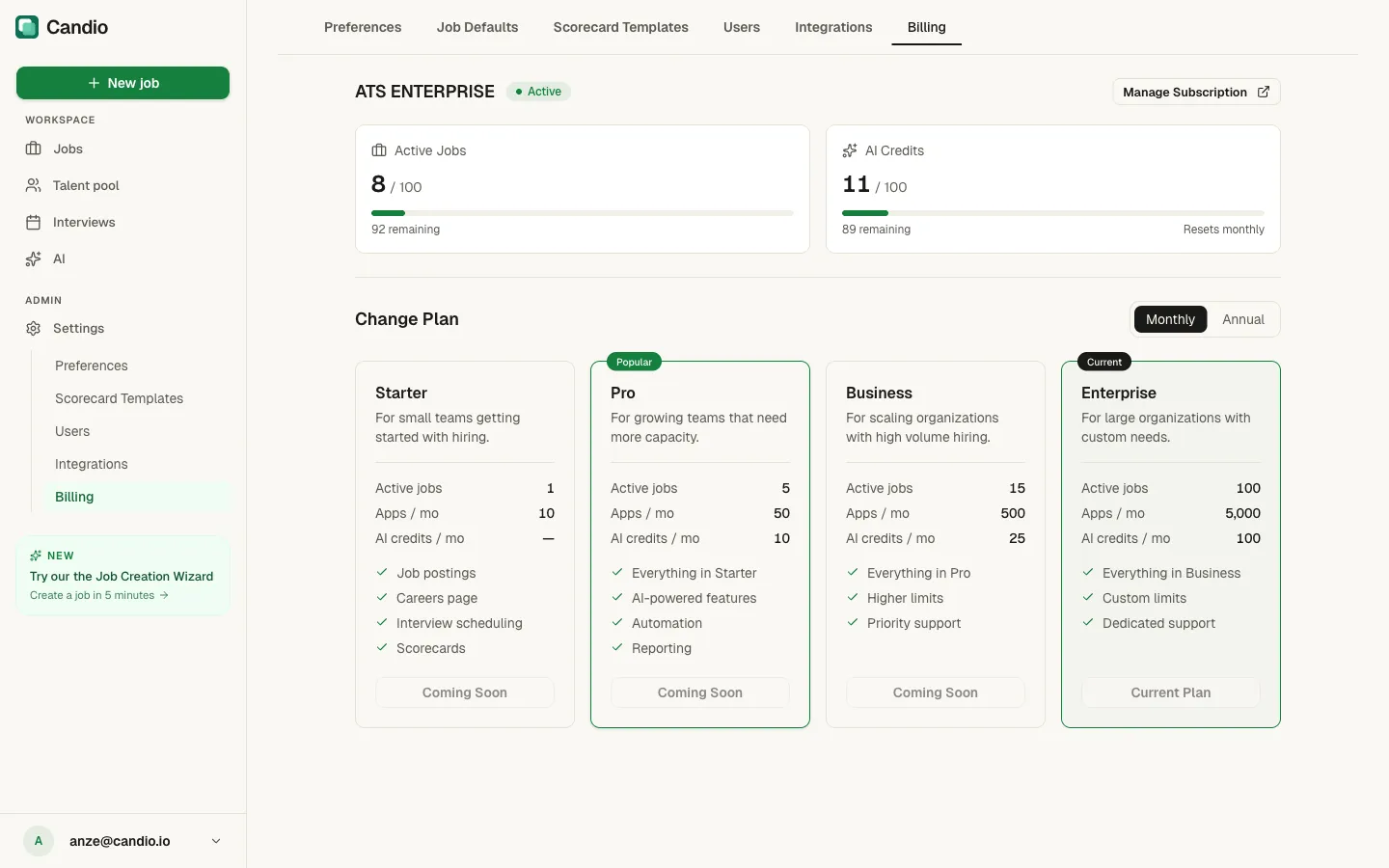
Your current plan
Section titled “Your current plan”Top of the page — plan name (ATS STARTER, ATS PRO, etc.), Active status chip, and a Manage Subscription button that opens Stripe's customer portal (for invoices, payment methods, billing email, tax ID).
Usage meters
Section titled “Usage meters”- Active Jobs —
X / Y— how many of your plan's job slots are in use (only Open and Draft jobs count; Closed/Filled don't). Hitting your limit prevents publishing new jobs until you close or upgrade. - AI Credits —
X / Y— how many credits you've used this cycle. Resets monthly on your billing anniversary. When you hit the limit, AI features pause until next cycle or upgrade. See AI credits.
Change plan
Section titled “Change plan”Four tiers, priced monthly or annually (toggle at the top-right of the Change Plan row).
| Plan | Active jobs | Apps/month | AI credits/month | Highlights | |---|---|---|---|---| | Starter | 1 | 10 | — | Job postings, careers page, interview scheduling, scorecards | | Pro | 5 | 50 | 10 | + AI-powered features, automation, reporting | | Business | 15 | 500 | 25 | Higher limits, priority support | | Enterprise | 100 | 5,000 | 100 | Custom limits, dedicated support |
The plan you're currently on has a "Current" badge; the most popular plan has a "Popular" badge.
Where invoices live
Section titled “Where invoices live”Manage Subscription → Stripe customer portal. From there: past invoices, PDF downloads, payment method updates, billing email, tax IDs, and billing address.
When you hit a limit
Section titled “When you hit a limit”- Active Jobs limit hit — the Publish button on any Draft is disabled. Close or fill an existing Open role, or upgrade. Drafts don't count against the limit, so starting new wizards is fine.
- AI credits limit hit — automatic AI (Job Fit on new applications, Round Summaries when rounds complete) pauses until next cycle or upgrade. Manual AI actions (Candidate Assessment → Generate Assessment) show "Monthly credit limit reached" in place of the run button.