
Preferences
Settings → Preferences holds workspace-level settings applied to every job: company details for emails, the list of offices and departments available in the wizard, and whether your public careers page is on.
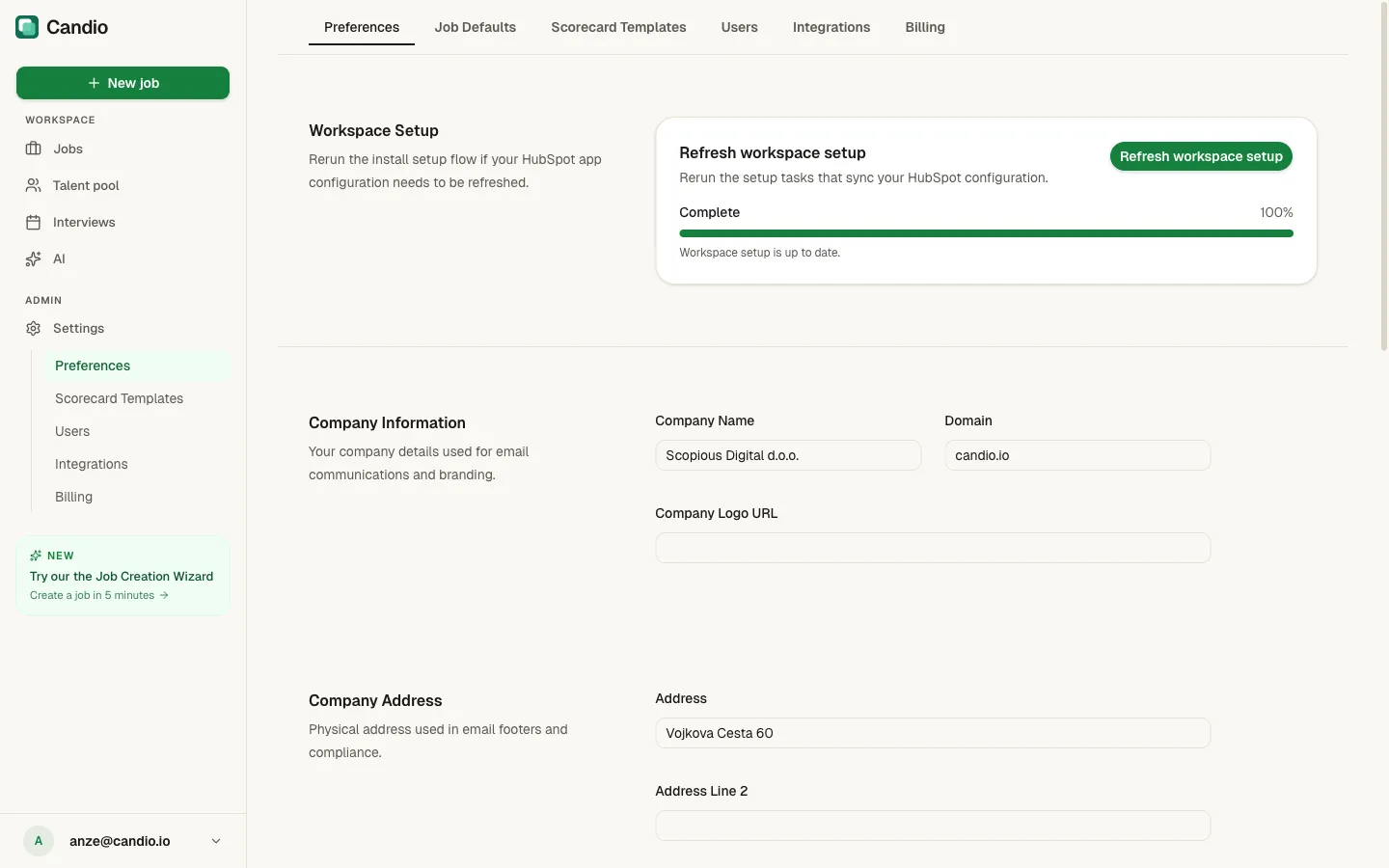
Workspace Setup
Section titled “Workspace Setup”Progress meter at the top of the page. 100% complete means every HubSpot install task has finished — object creation, pipeline setup, field sync, workflow activation.
- Refresh workspace setup button — re-runs the install tasks. Use if you bumped HubSpot OAuth scopes, installed on a new portal, or want to verify things are synced after an incident.
Company Information
Section titled “Company Information”- Company Name — shown in candidate email headers/footers, on the public careers page, and on job listings.
- Domain — your public web domain (e.g.
candio.io). Used in email metadata. - Company Logo URL — a public URL to your logo image (PNG / SVG). Pulled into email headers and the careers page.
Company Address
Section titled “Company Address”Full mailing address with Street, Address Line 2, City, State, ZIP Code, Country. Required by CAN-SPAM compliance on every outbound candidate email — Candio puts it in the footer automatically.
Click Save company information when you're done. The button stays disabled until you've changed something.
Offices
Section titled “Offices”Offices are the named locations you hire from. Each office is selectable in the wizard's Step 1.02 Where & how location picker and shows up as a filter on your careers page.
Each office has:
- Name — display name (e.g. HQ, NYC, Remote — Global).
- City (required).
- State / Region (required).
- Country (required).
- Postal Code — optional but strongly recommended; required for full Google for Jobs structured-data eligibility.
- Street Address — optional.
Offices missing required fields show a warning: ⚠ Location details needed for job board distribution. Jobs tagged to those offices won't appear on Google for Jobs or Indeed until you fill them in.
Click Add Office at the bottom of the form to save a new office. Click the pencil icon on an existing office to edit.
Departments
Section titled “Departments”Teams your jobs belong to. Same principle as offices — available in the wizard's team picker and as a careers-page filter.
Candio seeds every workspace with eight defaults: Engineering · Sales · Marketing · Operations · Finance · HR · Customer Success · Product.
Add a department with Department name → + button. Remove with the trash icon. Removing doesn't break existing jobs.
Careers Page
Section titled “Careers Page”Toggle Enable careers page to turn your public /careers/* URL on or off. When off, the route 404s and every published job is hidden from candidates. Handy when you want to pause external hiring temporarily without closing every role.