
Job defaults
Settings → Job Defaults is where you set two things once and stop setting them on every new job: your sender identity (the "From" name on candidate emails) and the automation toggles pre-filled into Step 3 of the wizard.
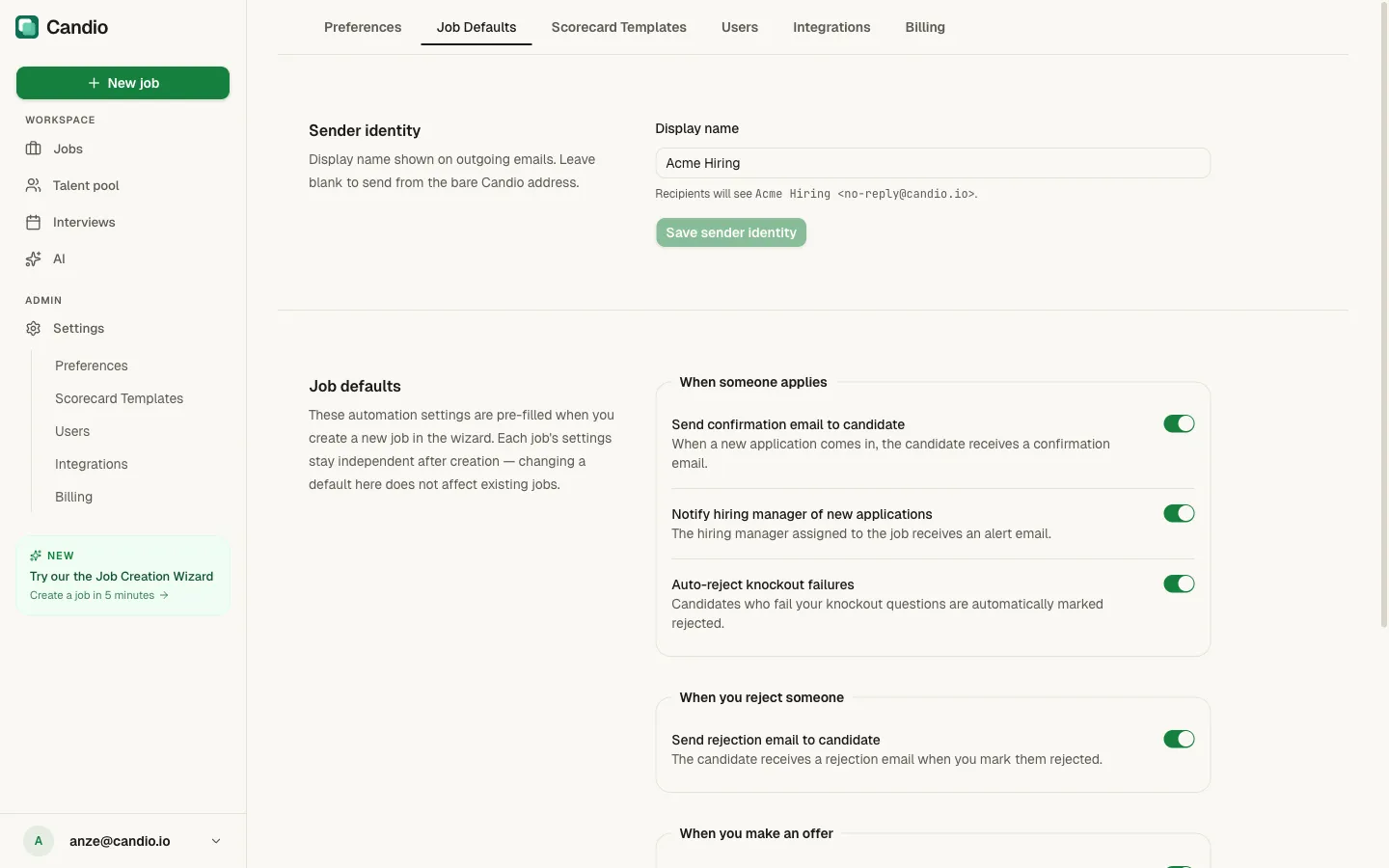
Sender identity
Section titled “Sender identity”- Display name — the friendly name candidates see on outbound emails. Leave blank to send as "Candio". Example: Acme Hiring.
- Candidates see
Acme Hiring <no-reply@candio.io>— the friendly name is yours, the reply address is Candio's routing infrastructure. Replies come back into the candidate's application timeline.
Click Save sender identity to apply. Change at any time; the update applies to future emails only (already-sent emails keep their original sender).
Job defaults
Section titled “Job defaults”"These automation settings are pre-filled when you create a new job in the wizard. Each job's settings stay independent after creation — changing a default here does not affect existing jobs."
Grouped by the same four triggers you see in the wizard.
When someone applies
Section titled “When someone applies”- Send confirmation email to candidate — confirmation email on every submission.
- Notify hiring manager of new applications — alert to the hiring manager.
- Auto-reject knockout failures — auto-reject + email on knockout mismatch.
When you reject someone
Section titled “When you reject someone”- Send rejection email to candidate — email when you click Reject.
When you make an offer
Section titled “When you make an offer”- Send offer notification — personal offer email from the hiring manager.
When you hire
Section titled “When you hire”- Send welcome email — welcome email on the Hired transition.
- Announce to team — internal announcement. Configure Recipient emails per job in the wizard.
What "default" actually means
Section titled “What "default" actually means”Defaults fire at job-creation time only. When you toggle something here, existing jobs are untouched — they keep whatever setting they had when they were built. To change automation on a live job, open Edit wizard → Step 3.
So the flow is:
- Set defaults here once to match your typical setup.
- Create new jobs — every toggle comes pre-filled; you flip exceptions.
- Override per job in the wizard whenever a role needs something different.