
Review candidates
Candio's Jobs section is where you review every candidate — ranked by AI, filtered by stage, with scorecards, activity, and automation all in one place. Every candidate and timeline event also syncs to your HubSpot portal automatically, so people who live in HubSpot see the same truth.
The Jobs list
Section titled “The Jobs list”Click Jobs in the sidebar.
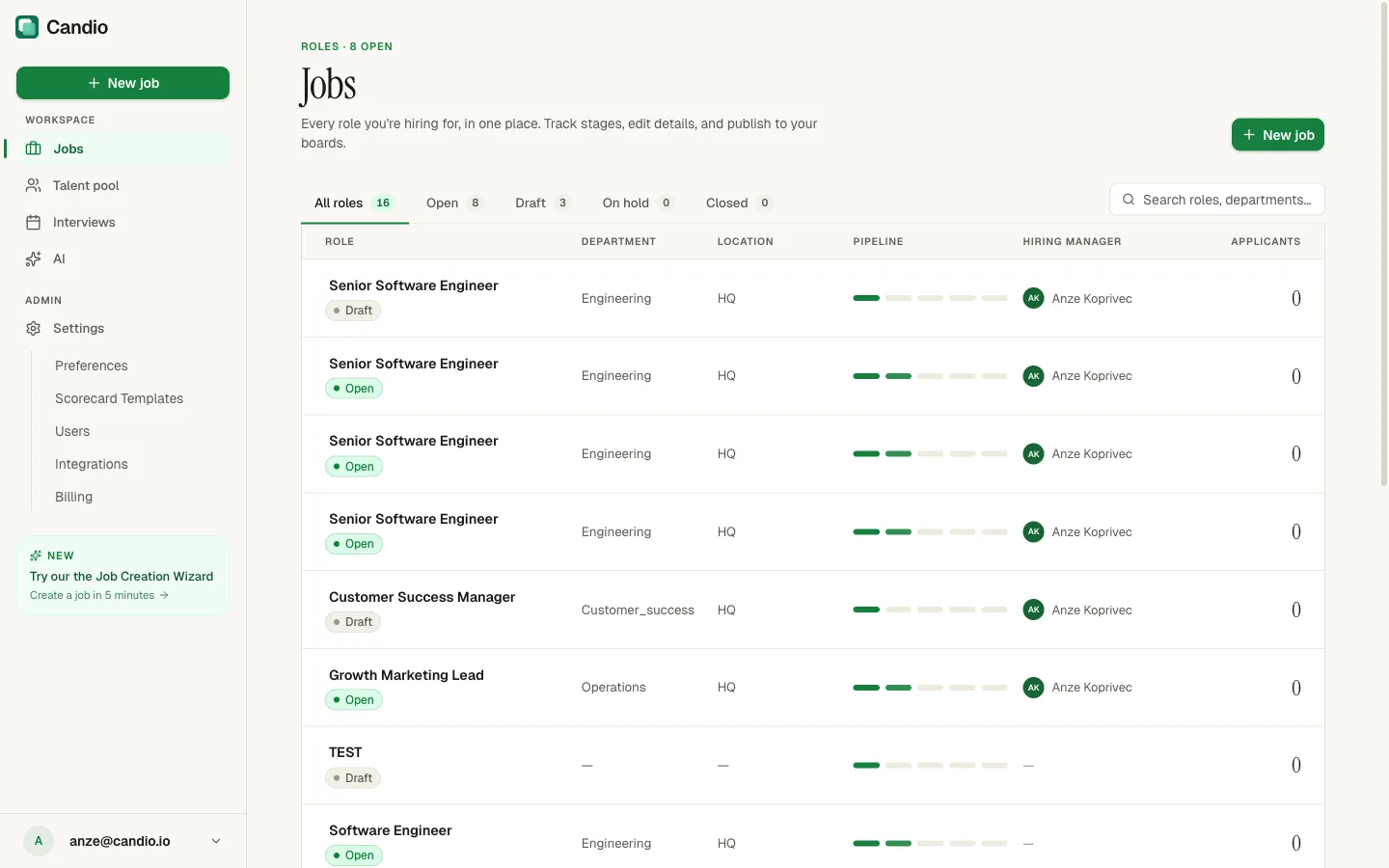
Filters along the top:
| Tab | Shows | |---|---| | All roles | Everything, including drafts. | | Open | Currently accepting applicants. | | Draft | Started in the wizard but not published. | | On hold | Paused. Hidden from candidates; existing ones stay in the pipeline. | | Closed | Ended without filling. |
Plus a search box for title/department, and a + New job button. Columns: Role · Department · Location · Pipeline · Hiring manager · Applicants.
The job detail page
Section titled “The job detail page”Click any row to open its detail page.
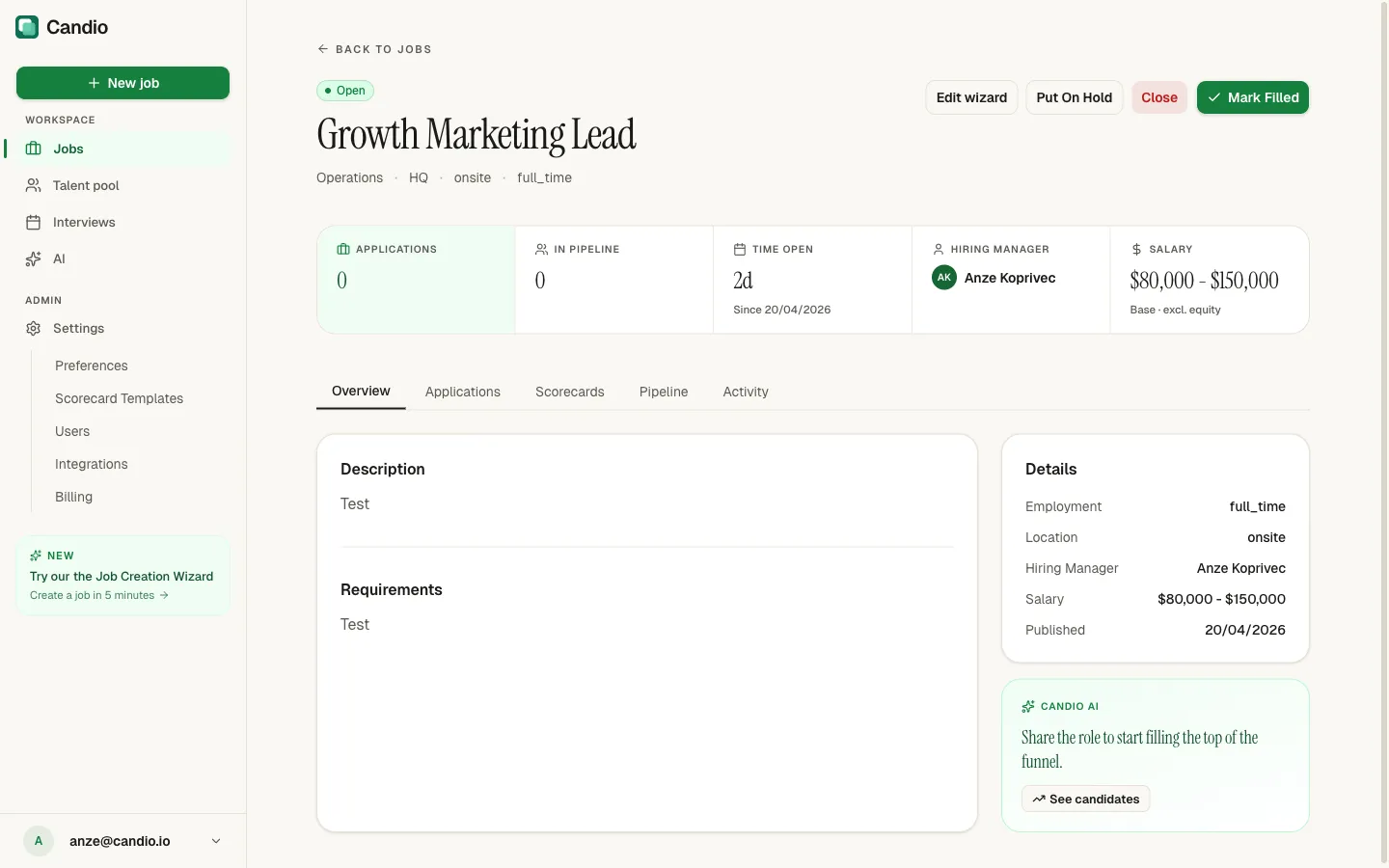
Header actions
Section titled “Header actions”Different status = different buttons:
- Draft → Publish (or Resume wizard if unfinished).
- Open → Edit wizard · Put On Hold · Close · Mark Filled.
- On Hold → Reopen · Close.
- Closed / Filled → Reopen.
Close is destructive (red-styled) — hides the post from candidates. Mark Filled is the happy-path equivalent when you've hired someone; it's what drives the Avg time to hire dashboard metric. Both are reversible.
Stats strip
Section titled “Stats strip”Five tiles: Applications · In pipeline · Time open · Hiring manager · Salary.
Five tabs
Section titled “Five tabs”Overview
Section titled “Overview”Description / requirements body + a Details sidebar + an adaptive Candio AI card that changes copy based on where the role is (empty, filling up, hot candidates, offers out).
Applications
Section titled “Applications”Your day-to-day surface. AI-ranked list of candidates with:
- A hexagon radar of the four trait scores (Qualification · Communication · Drive · Culture Fit).
- A tier badge: 🔥 Hot · Promising · Review · Long shot, plus filter chips at the top to show only one tier.
- Status chip (Active / Withdrawn / Rejected / Hired) and the 6-dot stage indicator (New → Screening → Interview → Assessment → Offer → Hired).
- Rubric bars for the four traits with
X/100on hover. - First three matched skills and application source.
Click any candidate to open their detail page.
Scorecards
Section titled “Scorecards”A read-only preview of the rubric you configured on Step 4 of the wizard: the job default and each round's scorecard with its fields. Click Edit in wizard to change them. (This tab isn't where you fill in scorecards — those happen on individual candidate pages.)
Pipeline
Section titled “Pipeline”Funnel view with five circles: Applied → Screening → Interview → Offer → Hired with counts, plus per-stage conversion percentages below. The fastest way to see where candidates drop off.
Activity
Section titled “Activity”A chronological feed: applications, scorecards submitted, stage changes, rejections, hires, emails sent. The audit trail for "what happened on this role".
The candidate detail page
Section titled “The candidate detail page”Opens when you click a row in Applications. It's built around a few anchors:
- Hexagon radar in the header visualizing the four trait scores plus a composite 0–100 AI score.
- 6-step Stage rail — New → Screening → Interview → Assessment → Offer → Hired.
- Top-right actions — View resume · Reject · Advance.
- Signal card — rubric bars with consensus + progress metrics.
- Skills chips — parsed from the resume.
- AI summary card — a gradient card with a one-paragraph plain-English take, generated when the resume was processed.
- Activity timeline on the right — every event on this candidate.
- Scorecards button that opens a right-hand panel for requesting feedback and reviewing submitted scorecards.
- AI Insights section with Job Fit, Candidate Assessment, and Round Summary cards.
Rejecting
Section titled “Rejecting”Click Reject (top-right). A dialog asks for a required Reason (Not qualified / Overqualified / Culture fit / Compensation / Timing / Ghosted / Other) and optional internal Notes. Click the red Reject to commit. If the Send rejection email automation is on, the candidate gets your rejection template within a minute. The notes are internal-only.
Advancing
Section titled “Advancing”Click Advance. The candidate moves one stage forward. Advancing is silent on its own — email automations fire when they hit specific stages (Offer → offer notification, Hired → welcome + team announcement).
Adding a candidate manually
Section titled “Adding a candidate manually”Not every candidate comes through the public form — referrals, executive searches, LinkedIn reaches. On any Open job, click Add candidate on the Applications tab.
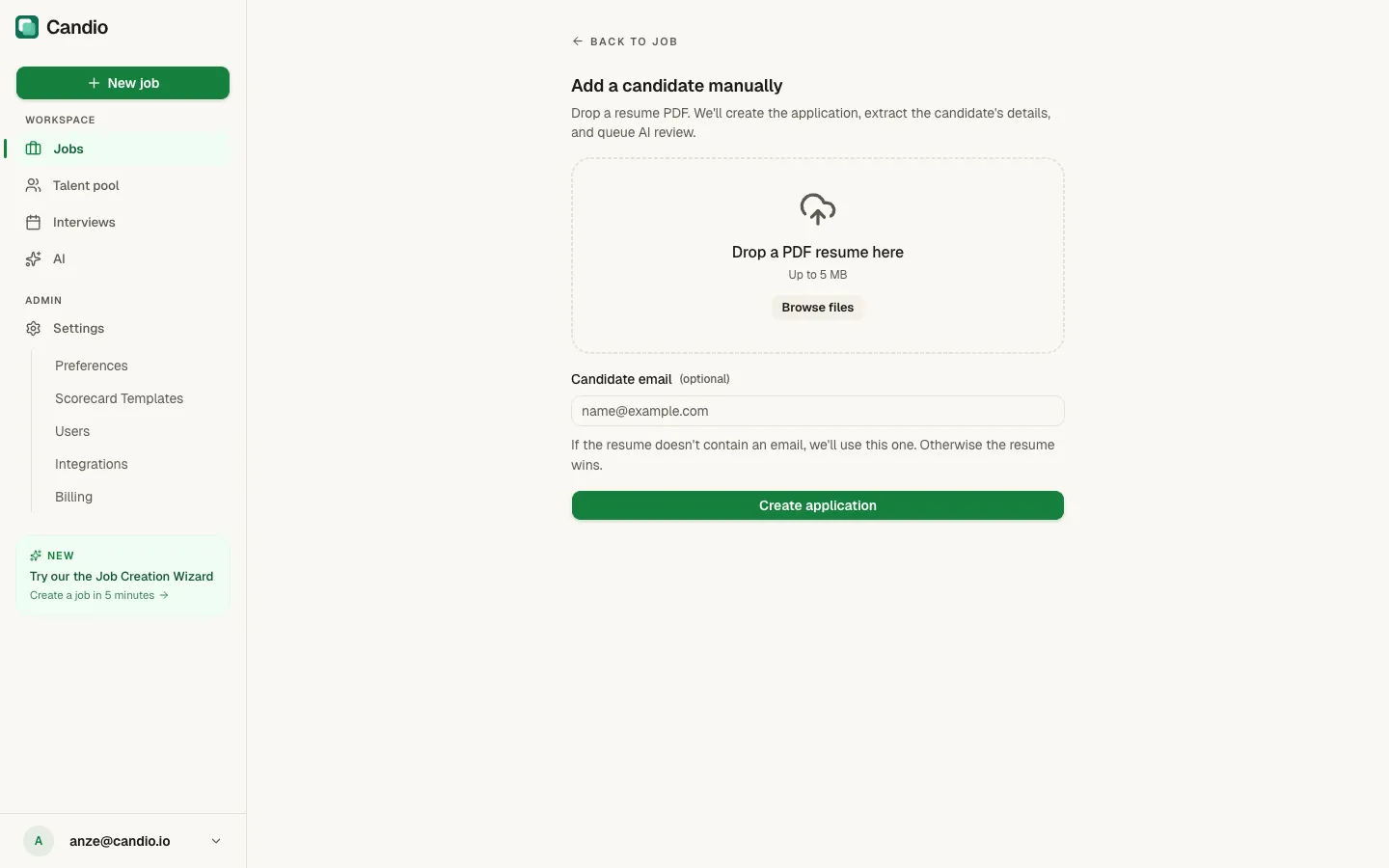
- Drop a PDF resume (up to 5 MB) or click Browse files.
- Optionally type an Email to use if the resume doesn't have one. "Otherwise the resume wins."
- Click Create application.
Candio parses the PDF for name, email, title, company, skills, and a summary, then creates the application in New and queues the Job Fit AI automatically. The candidate appears in your list within ~30 seconds.
How it syncs to HubSpot
Section titled “How it syncs to HubSpot”Candio creates and updates HubSpot objects behind the scenes:
- Every applicant becomes a HubSpot Contact with a standard property set (name, email, source, resume link).
- Every job becomes a custom-object record in your HubSpot portal.
- Every application (the application record) is a custom-object record linking a Contact to a Job, with stage, AI scores, and a timeline of events.
- Scorecards submitted, stage changes, rejections, and hires post to the Contact's HubSpot timeline with full detail.
So your recruiters, BD team, marketing team — anyone who already lives in HubSpot — sees the same story on the Contact record without having to leave HubSpot. HubSpot Workflows can extend the process too: post to Slack when a candidate hits a stage, enroll new hires in a welcome sequence, etc.