
Set up scorecards
A scorecard is a short form an interviewer fills out after a conversation with a candidate. A template is the reusable definition of that form. You build templates once in Settings → Scorecard Templates, attach them to interview rounds on Step 4 of the job wizard, and request them per candidate from the application page.
Interviewers fill scorecards out through a tokenized link in their email — no Candio account required. Once all scorecards for a round are in, Candio can generate an AI round summary synthesizing the team's take.
Build a template
Section titled “Build a template”Go to Settings → Scorecard Templates and click + New Template.
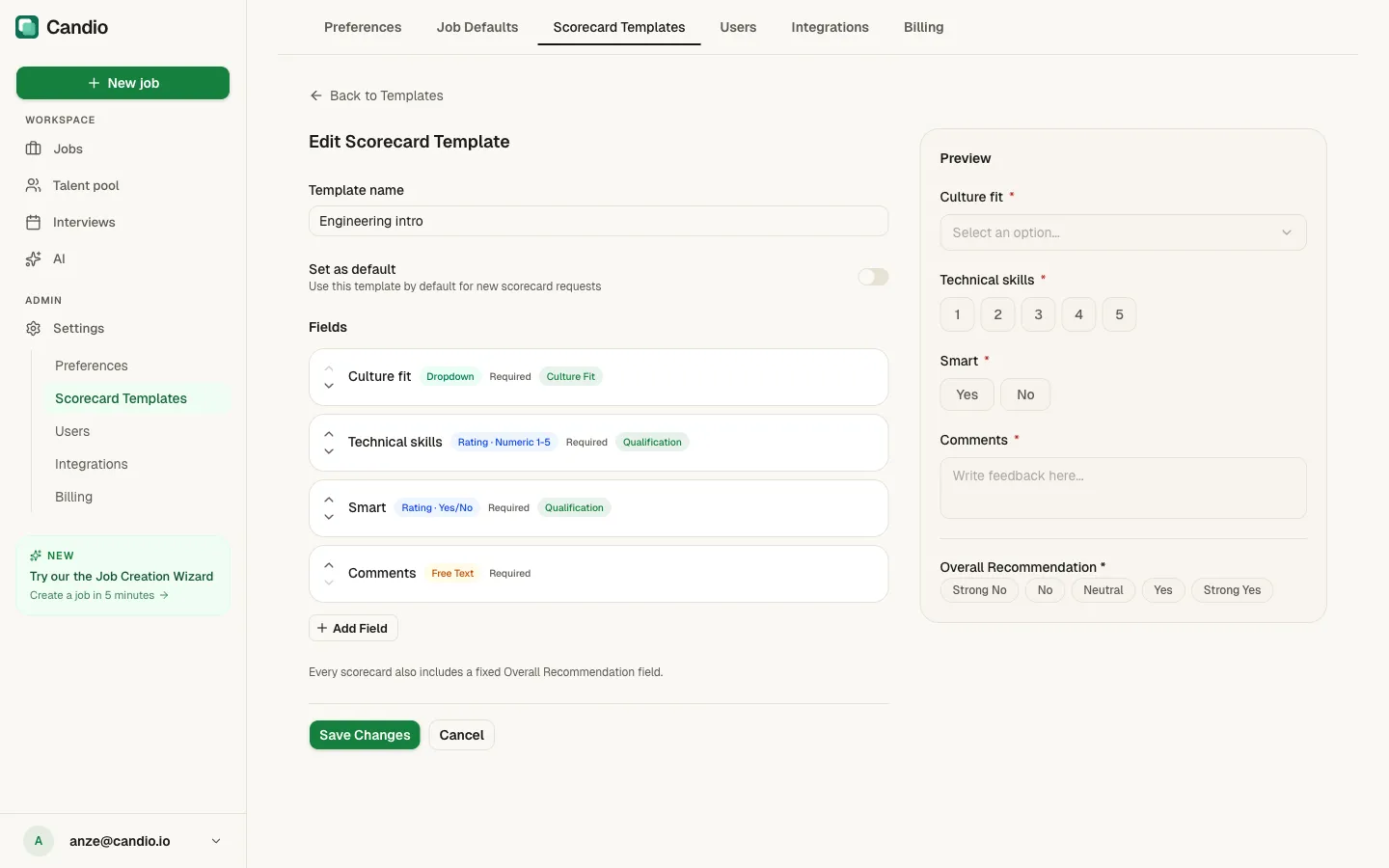
A template has:
- Template name — descriptive. "Engineering intro", "Tech screen", "Culture fit round".
- Set as default toggle — when on, this template is pre-selected for any job that doesn't otherwise assign one.
- Fields — the list of evaluation criteria (see below).
- Overall Recommendation — always the last field. Fixed options: Strong No · No · Neutral · Yes · Strong Yes. You can't remove or rename this; every scorecard includes it.
Field types
Section titled “Field types”Click + Add Field to add a field. Each field has a type:
| Type | What the interviewer sees | Best for | |---|---|---| | Rating · Numeric 1–5 | A row of 1–5 buttons labeled "No hire" → "Strong hire". | Quantifying traits like technical depth or communication. | | Rating · Yes/No | Yes / No buttons. | Pass/fail gates. | | Dropdown | A select menu with your custom options. | Categorical judgment (e.g. "Strong / Good / Weak"). | | Free Text | A textarea. | Open-ended commentary, e.g. "Comments". |
For each field you also set:
- Required — whether the interviewer must answer to submit.
- Category chip — a trait tag (e.g. Culture Fit, Qualification) that feeds the hexagon radar on the candidate page.
The Preview panel on the right shows exactly what the interviewer will see as you build.
Assign templates to rounds
Section titled “Assign templates to rounds”On Step 4 of the job wizard (or via Edit wizard on a live job):
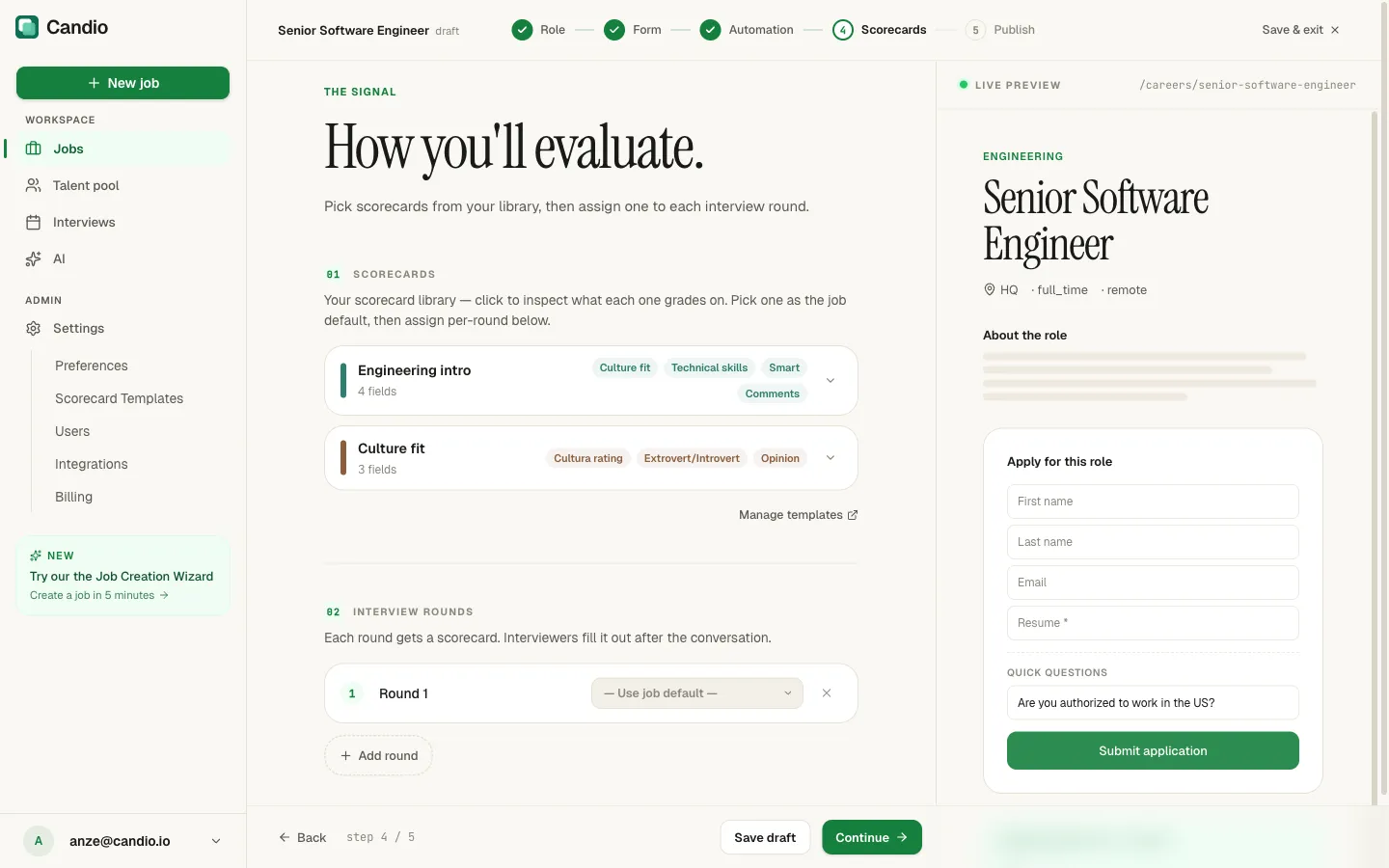
- Click any card in the scorecard library to inspect its fields.
- Click + Add round to create a round.
- Rename the round (e.g. "Phone screen", "Tech screen", "Onsite").
- Pick a template from the dropdown, or leave on
— Use job default —.
You can have as many rounds as you want. You can also skip this step entirely and send ad-hoc scorecard requests from the application page.
Request scorecards from a candidate
Section titled “Request scorecards from a candidate”Open the candidate's application page and click Request scorecards — a right-hand panel opens.
- Interview round — choose one of:
- Configured rounds — rounds defined on the job wizard. Rounds already requested on this candidate are hidden.
- Rounds on this candidate — rounds already in progress for this specific candidate.
- Create new → Ad-hoc round for this candidate — type a name; this round is only for this candidate and isn't added to the job's configured rounds.
- Scheduled date — optional. Pick the date of the interview. Used for interviewer context.
- Template — auto-fills from the round. Click Change to pick a different one.
- Interviewers — search/pick from your workspace users. Selected ones show as removable chips.
- Delivery:
- Send Email — Candio emails each interviewer a tokenized link.
- Copy Links — creates pending requests and shows you the URLs to share manually (handy when email filters are aggressive).
- Message — optional custom message, 500-char limit, appended to the scorecard email.
Click Send N Request(s) (or Create N Link(s)). The requests show up on the candidate's Scorecards section immediately, in Pending state.
The interviewer experience
Section titled “The interviewer experience”Each interviewer gets an email with a single link to their personal scorecard. Clicking it opens a clean, focused page in their browser:
- Live score preview at the top — a hexagon radar and composite score that updates as the interviewer fills numeric fields ("3 of 5 axes scored").
- Dynamic fields — whatever you put in the template, rendered as rating buttons, yes/no buttons, dropdowns, or textareas.
- Overall Recommendation — required; five buttons from Strong No to Strong Yes.
- Submit Feedback button.
- "I can't evaluate this candidate" drawer at the bottom — if the interviewer needs to decline (conflict of interest, no-show, etc.), they type a reason and hit Decline to Evaluate. The hiring team is notified.
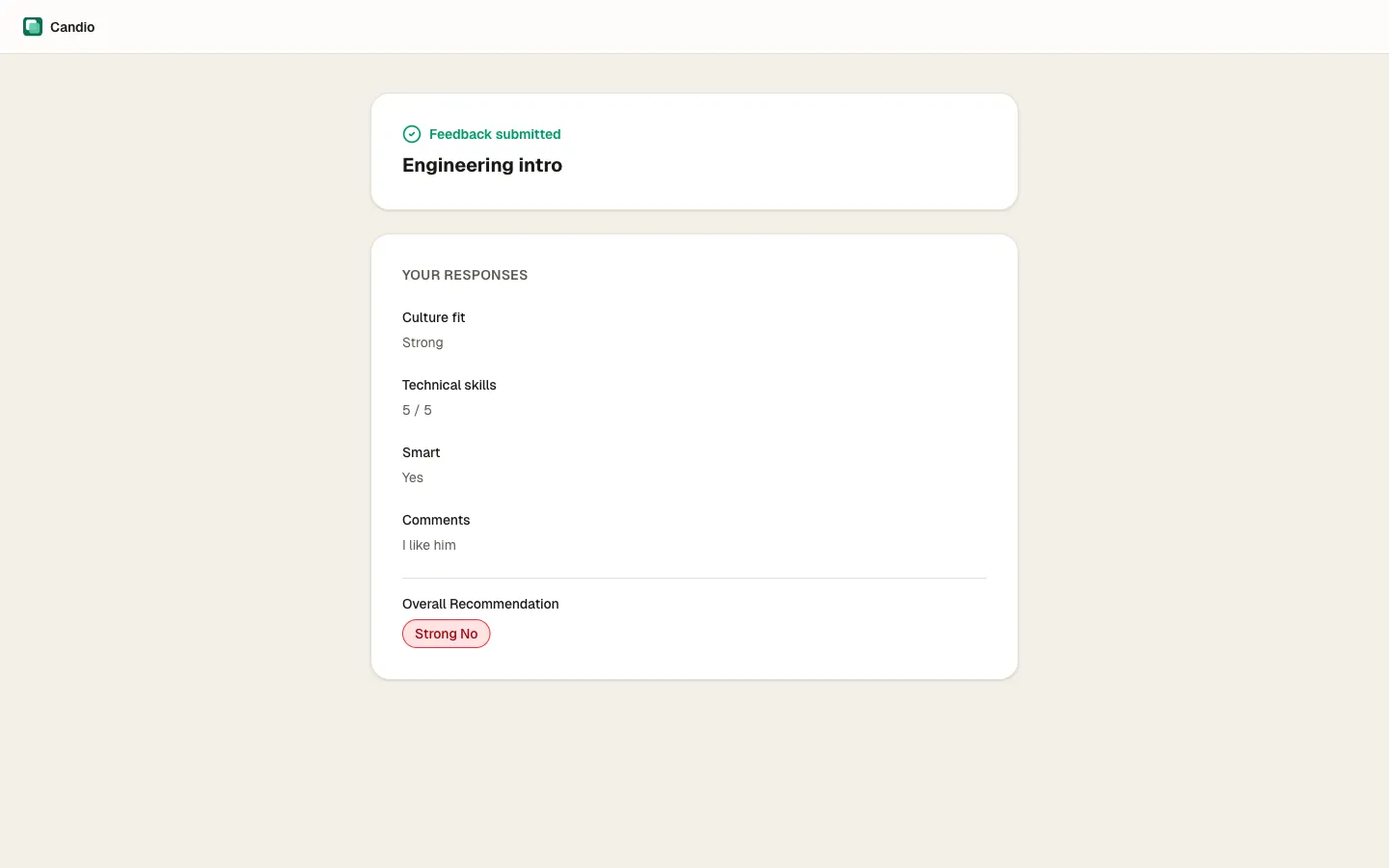
After submit, the page flips to a read-only summary: "Feedback submitted" plus their responses. Interviewers never need a Candio account — the tokenized link carries all the auth they need.
Meeting-based scorecard suggestions
Section titled “Meeting-based scorecard suggestions”If you have Zoom or Google Meet connected, Candio watches for meetings logged in HubSpot against a candidate contact. When it finds one, it surfaces an amber banner on the candidate's Scorecards panel:
"A meeting with the candidate was logged — assign a round?" · Confirm now · Dismiss
Click Confirm now to open an external Meeting Confirmation page (outside the main app, so interviewers with no Candio access can use it too):
- Pick the interview round the meeting was for.
- Pick which of the meeting's attendees should get a scorecard (all checked by default).
- Click Send scorecards to dispatch the scorecard request emails, or Dismiss to ignore this meeting.
This turns every logged HubSpot meeting into a structured scorecard request without manual entry.
Round summaries
Section titled “Round summaries”Once every scorecard request in a round is submitted, Candio shows an emerald banner at the top of the Scorecards panel:
"All scorecards for 'Tech Screen' are in" · Advance to Interview
At the same time it generates an AI round summary — recommendation (ADVANCE / HOLD / REJECT), consensus analysis, key insights, and a disagreements list. It appears on the candidate page under AI Insights.
Editing a template after use
Section titled “Editing a template after use”Edits to a template only apply to future scorecard requests. Already-submitted scorecards are frozen against the version the interviewer saw. In-flight requests (sent but not yet submitted) pick up the updated template when the interviewer opens the link.