
Build an application form
Each job in Candio has its own application form. You control it on Step 2 of the job wizard (or by clicking Edit wizard on a live job and jumping to Step 2).
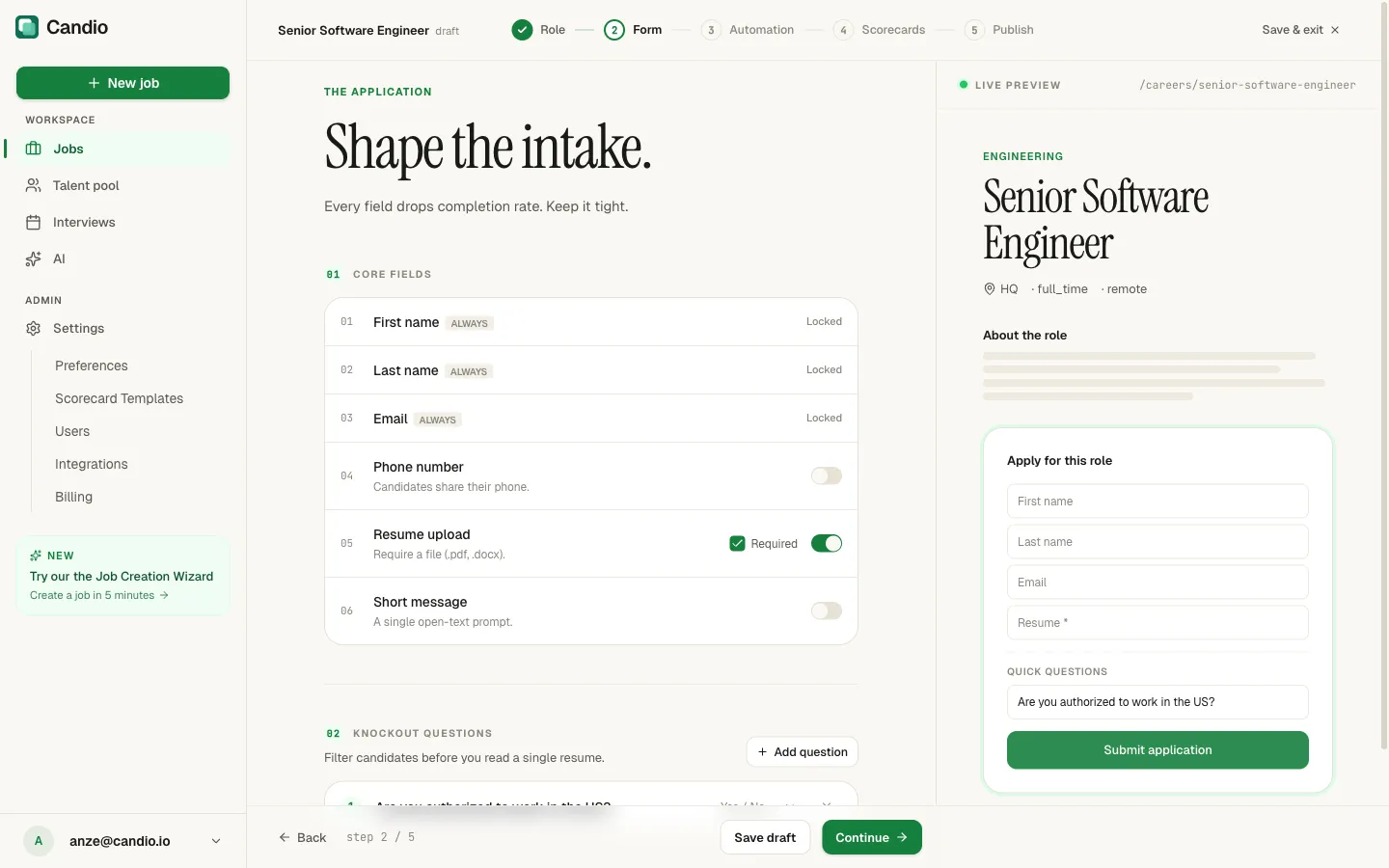
Two sections: Core fields (the always-on intake) and Knockout questions (yes/no filters that can auto-reject).
Core fields
Section titled “Core fields”The form has six predefined fields:
| Order | Field | Default | Notes | |---|---|---|---| | 01 | First name | Locked ON | Always collected. | | 02 | Last name | Locked ON | Always collected. | | 03 | Email | Locked ON | Always collected. | | 04 | Phone number | Off | Collect a phone if recruiters call. | | 05 | Resume upload | On, Required | PDF or DOCX. Uncheck Required to allow applications without a resume. | | 06 | Short message | Off | A single open-text "why are you interested?" box. |
The top three (first name, last name, email) are locked — you can't remove or reorder them. The bottom three are toggles you can flip on and off at any time.
Knockout questions
Section titled “Knockout questions”A knockout question is a single prompt candidates must answer on the way into the funnel. You define the question, the answer type, and (optionally) which answer auto-rejects.
Click + Add question to open a new knockout row:
- Question text — plain language, e.g. "Are you authorized to work in the US?"
- Answer type dropdown — pick one of:
- Yes / No — binary. Most common.
- Rating — numeric 1–N scale. Use for "how many years of…".
- Free text — open-ended. Doesn't support disqualify rules, but captured on the application.
- Disqualify rule dropdown — pick which answer auto-rejects. Leave as
No automatic disqualificationto collect the data without acting on it.
Every knockout question shows up in the Live Preview on the right under Quick Questions, so you can see how it looks to candidates before you publish.
Candidates see knockouts below the resume upload on the public form, labeled Quick Questions.
How the auto-reject actually works
Section titled “How the auto-reject actually works”When a candidate triggers a disqualify rule:
- The application is created in the Rejected stage immediately.
- If Auto-reject knockout failures is on in Step 3 (Automation), Candio sends your rejection email — with any custom message you set.
- The candidate never clogs your active pipeline. You see them only if you filter to the Rejected tab on the Applications list.
If Auto-reject knockout failures is off the candidate lands in Rejected silently — they never hear back. Use this for internal triage when you want to send a custom manual reply later.
Changing the form after publish
Section titled “Changing the form after publish”You can edit the form any time via Edit wizard → Step 2. Changes affect new applications only — existing submissions keep the form version they saw at apply time.