
Invite your team
Add colleagues to Candio from Settings → Users. Each person signs in with their work email via magic link, Google, or Microsoft — no passwords, no HubSpot account required.
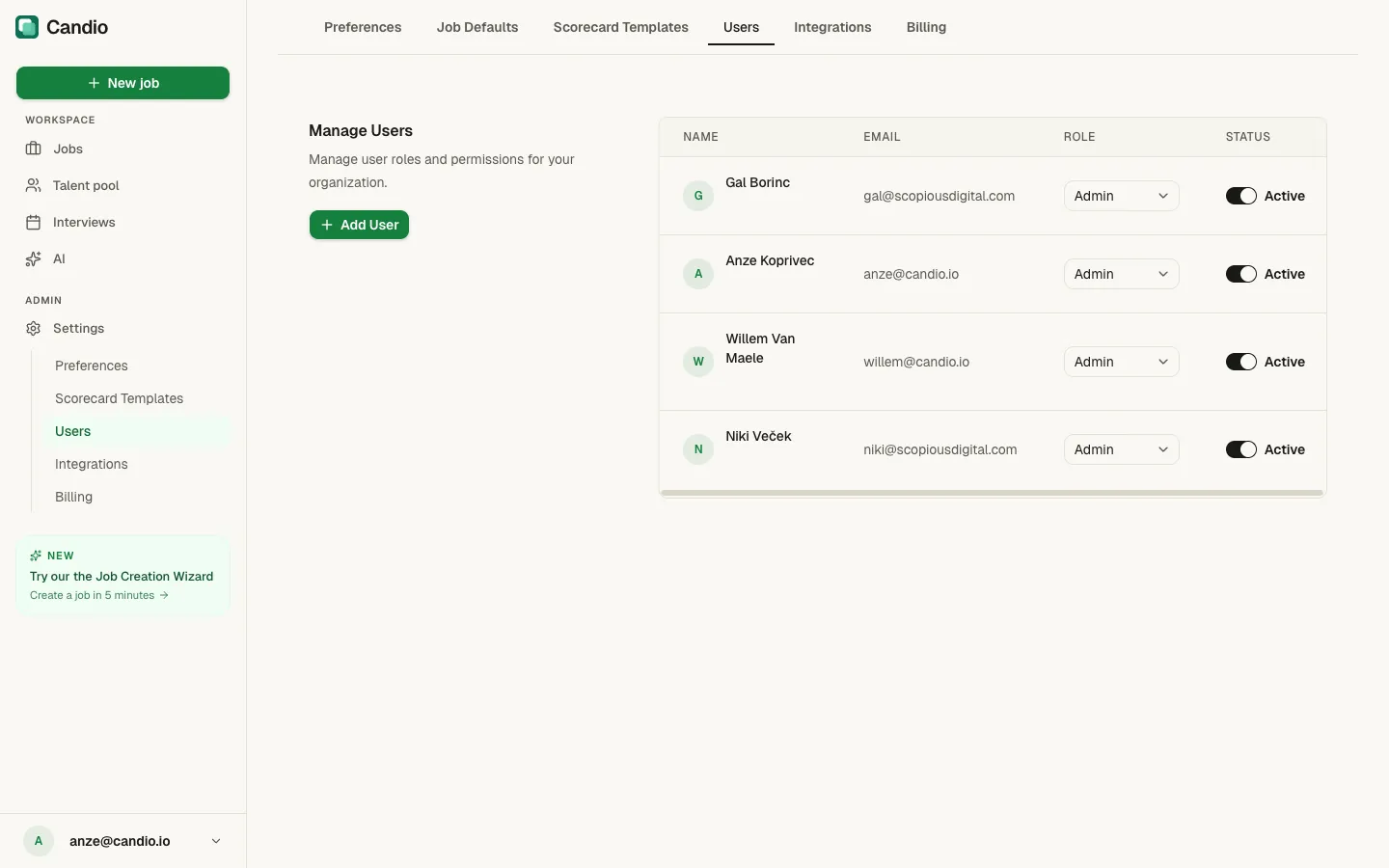
Add a user
Section titled “Add a user”- Go to Settings → Users.
- Click the green + Add User button.
- Fill in the user's Name and Email address.
- Pick a Role (see Roles below).
- Save.
The email address must match the one the user will sign in with — if they'll sign in with Google, it's their Google address. The user doesn't receive an automatic invite email; share the Candio URL and tell them to sign in with that email (magic link works without any setup). Once they sign in, their row goes Active.
Candio currently ships one role in the app:
- Admin — full access to jobs, candidates, scorecards, settings, and billing.
Interviewers don't need a Candio account — they fill out scorecards through tokenized email links. Add them to the Users table only if they need to sign in and see the pipeline themselves.
Activate and deactivate
Section titled “Activate and deactivate”Each row has an Active toggle on the right. Flip it off to revoke access without deleting the user record; flip it back on to restore it. This is the right move when someone's on leave or between roles — their jobs and scorecard submissions stay attached to their name.
To permanently remove someone, contact support. Removal is rare enough that it's not exposed in the UI; deactivating is almost always the better action.
Hiring-manager assignment
Section titled “Hiring-manager assignment”The hiring manager on a job is picked in Step 1.04 of the job wizard from any active user in the Users table. There's no separate "hiring manager" role — anyone in the table can be a hiring manager on any number of jobs.